


Scanning Thick Envelopes
After switching the paper output selection switch to Straight Scan, you can scan thick envelopes in Manual Single Mode.
For details about the paper weights of the documents that can be scanned, refer to Document Thickness (Paper Weight).
When using Straight Scan, switching to Manual Single Mode enables you to manually scan envelopes or booklets with a thickness of 1.25 mm or less (thick envelopes or thin booklets) one at a time.
Use this scanning method mainly for scanning thick envelopes.
For the precautions on scanning a thin booklet, refer to Precautions.
-
Switch to Straight Scan using the paper output selection switch.
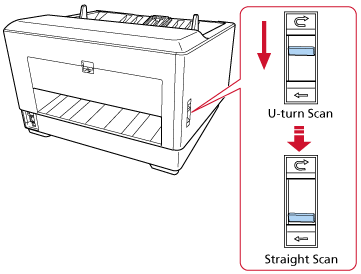
-
Load a document on the hopper.
Set the documents with the front side (scanning side) facing up.
For details, refer to How to Load Documents.
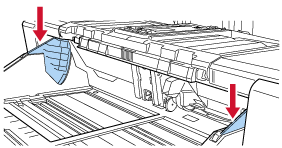
ATTENTIONWhen the feed mode is switched to Manual Single Mode, the hopper will rise and the hopper side guides will be caught by the stacker. This will prevent operation.
In this case, press down on the parts that move up and down on the hopper side guides.
-
Insert the document until the top edge touches the separator roller.
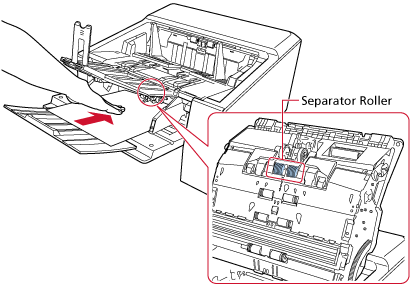
The document is picked, scanned, then ejected from the paper output on the back of the scanner.
ATTENTIONRelease the document as soon as the document is fed in the scanner.
Straight Scan is a function used with Manual Single Mode to scan multi-layered documents, such as envelopes and booklets with a thickness of 1.25 mm or less (thick envelopes or thin booklets).
Therefore, even if the setting for detecting overlapped documents is enabled, such documents are not detected as overlapped documents.
Manual Single Mode is the mode for scanning a document folded in half or a multi-layered document such as an envelope.
Therefore, even if the setting for detecting overlapped documents is enabled, such documents are not detected as overlapped documents.
When scanning long page documents using Straight Scan while [Manual Single Mode] is enabled, the scanner may fail to completely scan documents up to the maximum length due to the resolution settings in the scanner driver.
For details about supported document lengths, refer to Did you scan long page documents while [Low-speed Feed Mode], [ECO Mode] or with [Manual Single Mode using Straight Scan] is enabled?.
TIPIn Manual Single Mode, the scanner will wait for documents to be loaded on the hopper until the timeout time elapses after scanning is started or a document is ejected.
Scanning will finish if no document is loaded within the timeout time.
To end a scan before the timeout time elapses, press the [Pause] button.
To stop a scan before the timeout time elapses, press the [Scan/Stop] button.
Use one of the following methods to set a timeout time.
The [Manual Feeding] screen on the touch screen
Set [Timeout seconds]. The scanner waits for the next document to be loaded within a specified time.
The screen can be displayed in the following procedure:
 → [Scanner Settings] → [Paper Source/Feeding] → [Paper Source] → [Manual Feeding]
Software Operation Panel
For details, refer to Waiting Time in Manual Feeding [Manual Feeding].
To release Manual Single Mode, bring the pick roller unit back down to its original position.
For details, refer to "HINT" in Switching to Manual Single Mode.